[Kaseya Agent Procedure] Free Active Directory Health Monitor Script

Active Directory Health Monitor Script

From the skunk works here at Squidworks comes another great monitoring script for Kaseya.

The Active Directory Health Monitor Agent Procedure executes DCDiag on your Windows Active Directory server and captures any failures reported. The script then makes a unique event log entry into the Windows Application Event Log under the Application Events that can then be picked up by Kaseya’s Event Log Monitor. When Kaseya picks up this event you can instruct the monitor to create an alarm, create a ticket, run another agent procedure or email the alarm to an address(s).  Just schedule the agent procedure to run a couple of times a day to keep an eye on your customers Active Directory health.

The script also provides a complete report of the DCDiag results in the event of a failure that you can view by going to the “Get Files” area of your host in Kaseya and under this folder will be an Active Directory folder where the DCDiag.txt file results are stored.


All files and a README are included in the ZIP. Feel free to POST here any issues or comments you may have.


Download ->  Kaseya-ActiveDirectoryHealth


Enjoy

Cubert 😎

[Solved] -> Missing Previous Versions Tab on Windows Server 2003 Explorer Properties Box

So you think your missing the Previous Versions Tab when you open windows explorer, right mouse click and select properties on a Windows 2003 server. The reason for this is that Windows Server Explore only supports the Shadow Copy “Revert” feature when connecting to a local drive using Windows Explorer.   To get the “Previous Versions Tab” you should access the the drive as a UNC path in Windows Explorer. The   “Previous Versions Client” is not installed under that properties feature so it does not show up until you browse using a UNC path. See examples below.

Accessing VSS using Explorer and local drive path


When you use a UNC path in explorer it provides the Previous Versions client into the properties box for you to be able to mount and restore files as needed.

VSS access via UNC Path in Explorer


So access the files using \\servername\Share    or  \\servername\D$\folder  to see the “Previous Versions Tab“.


[Solved] – MS EXCHANGE 550 5.7.1 Client does not have permissions to send as this sender

 5.7.1 Client does not have permissions to send as this sender

This is what your Microsoft Exchange 2007 and or 2010 server may report when you try to send email through the Exchange server when permissions have been fouled up. The First this to check on is the “Manage Send As Permissions” under the user mailbox properties in the Exchange Management Console. Access the Exchange management console and select the user that is having the issue. Right Click, go to the send as permissions option.. now check that User NT AUTHORITY\SELF is listed.

Edit Send As Permissions
Exchange 2007


If it is not listed here then you need to add it in. This allows the authenticated user to send as their “Self”. Now retest your connection an try send a piece of mail.


Good Luck,

Cubert 😎

[Solved] – Network Location in no longer available or Error 59 on Windows XP system

You may have gotten a pop up on Windows that says your network resource is no longer available after a password change or password expired notice and while using Network Neighborhood. During troubleshooting you find that others can access share, the server is pingable but you can not access any share on system and it feels like XP thinks the server is not there.

I have found that this was caused by Windows Credentials being stored in the system and that the credentials  were not correct.    This issue happens in both Windows 7 and XP.

In order to fix something like this you will need to go into the Windows Credential Manager and remove the stored password.


To do this:


Windows 7: Control Panel – Windows Credential Manager

Windows XP – User Accounts – Username – Stored Network Passwords (Top left link)


Once removed retry to access share, you should now see share respond and pop up a user password windows. Place in the correct credentials and you’re in.


I hope this helps someone out there..


Cubert  😎

[Solved] – Unable to take VSS Snapshot and transfer data for ‘C:’ Unable to take VSS Snapshot of volume(s) because the VSS subsystem is in a bad state.

App Asure Replay CoreAppAssure Replay backup reports Errors, ‘Unable to take VSS Snapshot of volume(s) because the VSS subsystem is in a bad state.’ or ‘Error taking snapshot of volume(s): AddToSnapshotSet failed when trying to add volume ‘C:’ – VSS Provider is not registered’


I found this to be a fairly common issue when deploying new Replay agents out to Windows 2003 servers. There are several things that should be addressed when deploying Replay agents to Windows 2003 Servers including repairing LSP, refreshing and / or verifying VSS states and removing conflicting software. I have had great success resolving these types of issues by following these simple steps.

#1  Remove Offending Software Conflicts

Offending Software:

Acronis Backup & Recovery 10 Agent

Symantec Backup Exec Remote Agent for Windows

any 3rd party backup software


#2 Reset VSS Writers

I use a simple bat file that re-registeres all my VSS writers and then I follow that up with a reboot. Below is the bat script commands, copy them to a file, name the file vss.bat, then run the file. It should shutdown a few services and re-register the VSS writers.  reboot is needed after this has completed.

net stop “System Event Notification”
net stop “COM+ Event System”
net stop “Microsoft Software Shadow Copy Provider”
net stop “Volume Shadow Copy”
cd /d %windir%\system32
net stop vss
net stop swprv
regsvr32 /s ole32.dll
regsvr32 /s oleaut32.dll
regsvr32 /s Vss_ps.dll
vssvc /register
regsvr32 /s /i swprv.dll
regsvr32 /s /i eventcls.dll
regsvr32 /s es.dll
regsvr32 /s stdprov.dll
regsvr32 /s vssui.dll
regsvr32 /s msxml.dll
regsvr32 /s msxml3.dll
regsvr32 /s msxml4.dll
net start “COM+ Event System”


#3 Repair the Layered Service Providers

Layered Service Provider (LSP) is a feature of the Microsoft Windows Winsock 2 Service Provider Interface (SPI). A Layered Service Provider is a DLL that uses Winsock APIs to insert itself into the TCP/IP protocol stack. Once in the stack, a Layered Service Provider can intercept and modify inbound and outbound Internet traffic. It allows processing of all the TCP/IP traffic taking place between the Internet and the applications that are accessing the Internet (such as a web browser,  email client or Replay agent.).

This is a common problem in Windows 2003 especially if you use Kaseya agents on these systems. The kaseyasp.dll causes some issues with transferring the file across the network. Luckily this is a really easy fix. Download and run LSPFix.exe on the Windows 2003 Server system. It will find the Kaseya Dll issue and repair it for you.


#4 Verify no Disk Errors are present

This often overlooked but a simple “CHKDSK C:” at the command prompt will scan your disk and verify if there are any errors on your disk. Using the “/F” switch you can fix the errors. Make sure you have clean disks.


By following these steps you should resolve 98% of your common backup issues with Replay clients failing snapshots or not transferring the snapshot once it has been taken.


I hope this helps fellow AppAssure users out there in cybertown.


Enjoy

Cubert 😎

[Solved] – Always getting message “Windows can’t update important files and services while the system is using them”


Everytime you try to run the Windows Updater you always get the message  “Windows can’t update important files and services while the system is using them.  Save any open files and restart the computer, and try to check for new updates.“   This is caused by a Registry Key that has not been removed after a previous update.

There is a simple solution for some:

1. Open regedit.exe

2. Navigate to the Registry Key  “HKLM/Software/Microsoft/Windows/CurrentVersion/WindowsUpdate/Auto Update

3. Look for Registry Key “RebootRequired”.

4. Delete the Registry Key. Do not look for a value, there will be a KEY(folder) called “RebootRequired”

5. Reboot the Machine .

6. Run Windows update again.

If this fails to resolve issues you can try the following:

Empty your temporary Internet Files Folder
Open Run Command (Windows key + R)
type: cd %temp%
Empty the contents of that folder (del *.*)
Restart your computer

You can also give this a try:
1. Click Start, type msconfig in the Start Search box, and then press ENTER.
User Account Control permission
If you are prompted for an administrator password or for a confirmation, type the password, or click Continue.
2. On the General tab, click Selective Startup.
3. Under Selective Startup, click to clear the Load Startup Items check box.
4. Click the Services tab, click to select the Hide All Microsoft Services check box, and then click Disable All.
5. Click OK.
6. When you are prompted, click Restart.
7. After the computer starts, check whether the problem is resolved.

This should solve your issue and allow you to Windows Update to install the next round of patches.

Good Luck!


Cubert

😎

[Kaseya Agent Procedure] Mac OSX and Windows – Send A Friend a YouTube Video Surprise!

Kaseya YouTube Me Script Plays Youtube videos on desktop inside a player.

Here is a script that carries a warning, Use Wisely… I am not responsible for misuse! If you play porn on the bosses PC why he is in a meeting with the board of directors I am not liable for your termination and or execution depending on the boss…

Now with that disclaimer said here is what I made for you. This script will “based on the OS installed” (Windows) copies a portable version of VLC to c:\temp and runs it with a URL as a option or (Mac OSX) Downloads a DMG of VLC and installes it if not found already on system and then runs the same URL.

The URL is a cartoon of a stick guy beating himself to death while a stupid song plays in the backgrond. It will pop up on the desktop of the user logged in and if the speakers are up it may be a jolt!

Here are the files you will need

The script -> Procedure YouTube Me

WIndow Portable VLC -> Windows VLC

Mac OSX VLC (dmg)    vlc.2.0.1 

Download all 3 files and upload the VLC files to your VSA SharedFiles Folder. Edit script after importing it into Kaseya and make sure you do not have any red lines in code. If so you may have file location issues, check where you uploaded VLC files. Post here any good YouTube URL to use for script.

Have fun

Cubert 😎


[Solved] iTunes – The procedure entry point sqlite3_dll wal checkpoint could not be located in the dynamic link library SQLite3.dll

iTunes 10 Fails to Backup iPhone or log in to iTunes Account

This week I was presented with a new problem.  A user was unable to back up her iPhone, log onto her iTunes account. Or run any updates on the device. Very frustrating for the user.  To top it off, every time her computer booted up, she received the following error:  “The procedure entry point sqlite3_dll wal checkpoint could not be located in the dynamic link library SQLite3.dll.” or similar error with Mobile update in the text also appeared.

After uninstalling  all apple products and re-installed iTunes, the problem still persisted.  Usually, when going to the iTunes store and no music shows up, a simple net winsock will fix the issue, however no dice here.  After some research, it appears that this is an issue that happens with some iTunes 10 installs.   It appear that this sqlite file does not always get placed in the appropriate area.  Anyway, if you come across this problem here is the fix.  I don’t think I have ever seen a client rush to buy music, as she did today!

To fix the dll error, go to this folder:
C:\Program Files\Common Files\Apple\Apple Application Support
Right click and copy this file.

SQlite3.dll
Next, go to this folder:
C:\Program Files\Common Files\Apple\Mobile Device Support
Right  click and paste the file into the folder.

You don’t have to delete the file from the copy location, it actually needs to be in both places.


Good luck


Cubert 😎

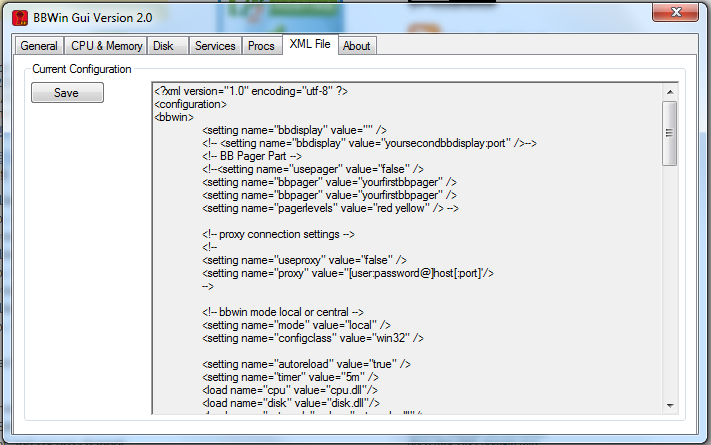
New BBWin GUI Version 2 Release for BBWin XYMon Client

Today we are releasing a brand new fully redesigned BBWin GUI application that will allow the user to quickly and easily add or update the BBWin.cfg file. It is a small standalone application written in C# that provides for most of the configurations that you can find in the BBWin.cfg file. From managing your disks to selecting processes and services to monitor this tool does it all.

When you first launch the GUI it will check to see if it sees the BBWin Service installed on your client and if not will allow you to download it directly from SourceForge.

The next option will be to open an existing cfg file or download our default file.

If you select open existing you will be presented with a Windows Explore window to navigate to the file you want to open. If you select to download the defaults it will pull a generic file from Squidworks.net and start you out with nothing configured. It will auto populate the system name and the default disks, CPU, Memory and Pagefile will be monitored.

The BBWin GUI is uses a multi tab display to configure the different  areas of the BBWin.cfg file. As you navigate across each TAB, different options will be displayed for you to modify as needed. We have incorporated sliders and simple presets areas to make it easier to adjust thresholds without making mistakes to format of the XML file. After making all your changes it is easy to save your file and watch BBWin reload automatically.

DOWNLOAD  Here -> BBWin_Gui_v2.2

Screen Shots


DOWNLOAD  Here -> BBWin_Gui_v2.2

Enjoy

Cubert 😎


[Solved] Appassure Replay snapshots or base image fails to copy from Agent to Core on or after new installs

So you may have a Windows 2003 server or servers that after installing the agents, configuring permissions and setting system to Protect on your core keeps failing to grab the first snapshot from your system.

This is quite common in Windows 2003 but may see it in 2008 as well. The issue is that the Winsock is messed up. Download and run LSPFix.exe on the client system and restart the agent services afterwards. Then go back to the core and select to force new snapshot to start the download. You should see the system start the download with in 5 minutes and no more errors in events.

 I am using Replay version 4.7.2 at the time of this post

Error that may show up when fix is needed:

Logger: tevolib.txtrack
Context: PG=VolsWithInterval60Minutes Volume=\\?\Volume{741d2f02-3eb0-11dd-8e1a-806e6f6e6963}\ DriveLetter=C:
Source Location: TransmissionTracking.cpp:115
Details:
Transmission of volume ‘C:’ started when another transmission of that volume is already in progress

Logger: tevoSource.snapshotHandler
Context: PG=VolsWithInterval60Minutes Volume=\\?\Volume{741d2f02-3eb0-11dd-8e1a-806e6f6e6963}\ DriveLetter=C:
Source Location: SnapshotHandler.cpp:992
Details:
Transfer failed on volume: C: Epoch: 204 Target: CNSCOLO-BDR Port: 8001 – Unspecified error

Logger: exceptions.seh
Context: PG=VolsWithInterval60Minutes
Source Location: exceptions\SehHandler.cpp:151
Details:
Encountered a serious error EXCEPTION_ACCESS_VIOLATION.  Exception dump logged to C:\Documents and Settings\cns\Application Data\AppAssure\ErrorDump-TevoSource.exe-2012-02-28-11-43-41-0625-41.dmp.bz2


Enjoy

Cubert 😎