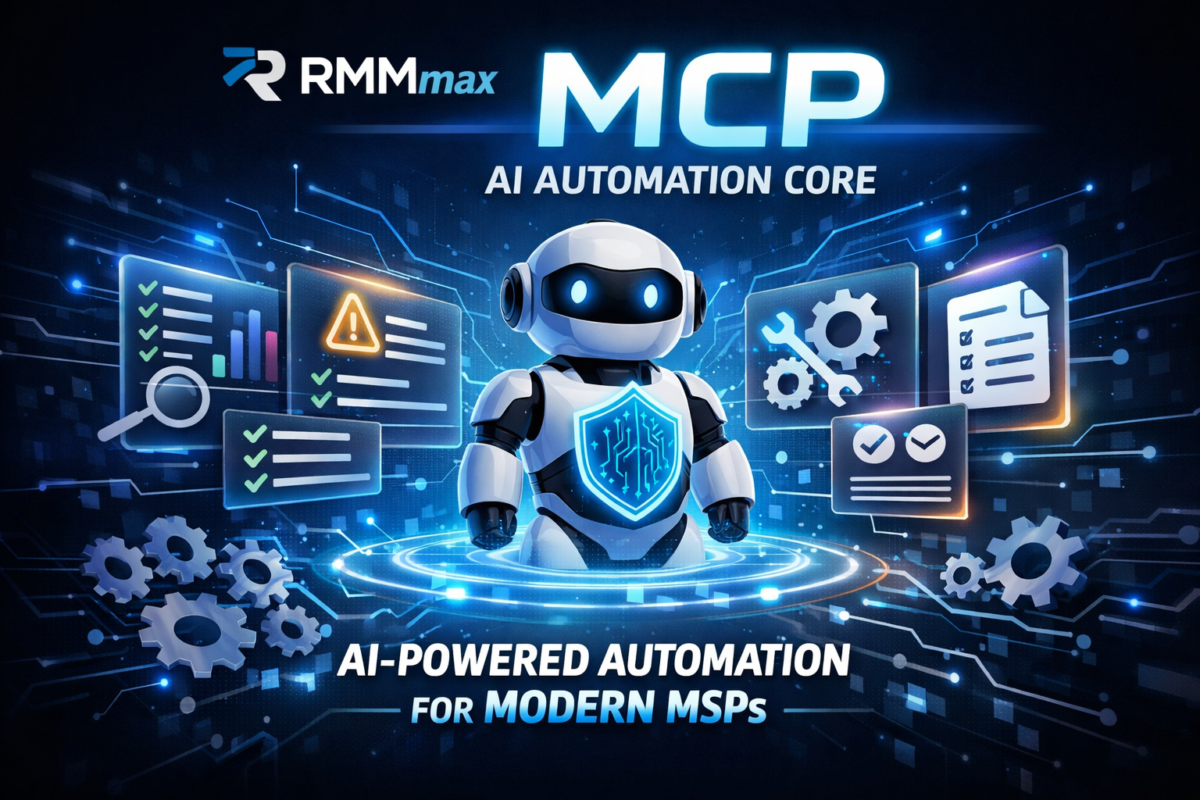
RMMmax Introduces MCP — The New AI Automation Core for Modern MSPs

We’re excited to announce the MCP (Managed Companion Platform) — a fully integrated AI automation layer that gives your RMM environment 47 powerful, context‑aware functions for analysis, remediation, scripting, reporting, and system repair.

This is the moment AI becomes operational inside your RMM, not just theoretical.

The future of MSP automation just arrived inside RMMmax.

We’re excited to announce the MCP (Managed Companion Platform) — a fully integrated AI automation layer that gives your RMM environment 47 powerful, context‑aware functions for analysis, remediation, scripting, reporting, and system repair.

This is the moment AI becomes operational inside your RMM, not just theoretical.

🔧 What MCP Brings to Your RMM

The MCP transforms your environment into an AI‑ready automation engine that can:

  • Analyze endpoints, configurations, logs, and performance
  • Review system health and compliance across tenants
  • Report on issues, trends, vulnerabilities, and fleet‑wide insights
  • Create scripts tailored to your environment
  • Execute scripts safely through your RMM or the RMMmax Agent Service
  • Repair systems using automated, AI‑generated workflows
  • Document everything with clean, human‑readable summaries

All of this happens inside your existing RMM, using your existing agents, with zero backend exposure.

🔐 Security Built for MSP Reality

AI access is controlled through:

  • Team‑scoped secure tokens
  • Strict tenant isolation
  • Environment‑bound authentication
  • Full auditability of every action

Your RMM stays protected. AI gets only what it needs — nothing more.

⚙️ No Extra Setup. No Extra Licensing.

The MCP deploys automatically as part of RMMmax 2.0. If you’re running RMMmax, you already have it.

If you’re new, you can start with 25 free agents and experience the MCP firsthand.

🌐 Why This Changes Everything

For the first time, MSPs can let AI:

  • Investigate issues
  • Build scripts
  • Execute remediations
  • Validate results
  • Document the fix

…all without giving AI direct access to the RMM backend.

This is the new automation standard for MSPs — faster, safer, smarter, and built for real‑world operations.

[Kaseya Agent Procedure] VMWare ESXi Hardware Health Monitor

VMWare ESXi Hardware Health Monitor Script

From the skunk works here at Squidworks comes another great monitoring script for Kaseya.


This script uses the SDK provided by VMWare to query the  ESX host and return a good or bad variable.  If the hardware test fails then the script grabs the log of the test and uploads it to Kaseya Server then places it under the “Get File” area for the host that ran the test. You can run this script on any windows box, I have also included the current vSphere SDK installer and a Kaseya script to install it if it is not found on the Windows Host.

Upload the SDK installer and Import the scripts to your public files area in Kaseya under the directory “VMWare”. If you place files anywhere else you will need to edit script for the new location of files.

The script then makes a unique event log entry into the Windows Application Event Log under the Application Events that can then be picked up by Kaseya’s Event Log Monitor. When Kaseya picks up this event you can instruct the monitor to create an alarm, create a ticket, run another agent procedure or email the alarm to an address(s).  Just schedule the agent procedure to run a couple of times a day to keep an eye on your customers VMware vSphere ESXi Hardware health.

This script links to the CIM information provided by the hardware to the ESX host. You will see CPU, Memory, Fans, RAID and Controller Health. The log file that is uploaded will only show failures and will tell you what failed and on what ESX host.

Download -> Kaseya VMWare ESXi Hardware Monitor


Enjoy

Cubert 😎

[Kaseya Agent Procedure] Free Active Directory Health Monitor Script

Active Directory Health Monitor Script

From the skunk works here at Squidworks comes another great monitoring script for Kaseya.

The Active Directory Health Monitor Agent Procedure executes DCDiag on your Windows Active Directory server and captures any failures reported. The script then makes a unique event log entry into the Windows Application Event Log under the Application Events that can then be picked up by Kaseya’s Event Log Monitor. When Kaseya picks up this event you can instruct the monitor to create an alarm, create a ticket, run another agent procedure or email the alarm to an address(s).  Just schedule the agent procedure to run a couple of times a day to keep an eye on your customers Active Directory health.

The script also provides a complete report of the DCDiag results in the event of a failure that you can view by going to the “Get Files” area of your host in Kaseya and under this folder will be an Active Directory folder where the DCDiag.txt file results are stored.


All files and a README are included in the ZIP. Feel free to POST here any issues or comments you may have.


Download ->  Kaseya-ActiveDirectoryHealth


Enjoy

Cubert 😎

Kaseya Agent Procedure – Local Admin Audit

Cubert has created another simple auditing script for Kaseya Agent procedures. This script grabs all the users and groups in the Local Administrators Group of any Windows system and saves then to a file on the Kserver. Every time the script runs it will upload and compare the files for differences. If it finds that a user or group was added or removed it will alert the Kserver. If you have a GetFile Alarm rule setup in the Monitor Menu -> Alerts -> GetFile  to create a ticket or email you then you will receive an alert anytime the script is run and changes are seen.


Download and unzip the XML file and import it in to Kaseya Agent Procedures. There is no scripts or extra files needed with this guy so you only need the XML file inside the zip.

Download here -> Procedure-LocalAdminAudit


Enjoy

Cubert 😎

Kaseya Agent Procedure – Make A Mac Sing A Stupid Song

Cubert has noting better to do with his time then to play with the Text to Speach functions available on a Mac. Well today he has put together a smaill Kaseya Agent Procedure that sings a little song to to the unspecting user of a Mac system.  Just import the script and launch it against the unsupecting to get a quick laugh. You can do one further by modifing the script and using it to announce the start or finish of a script or process your running on a users Mac. A good example of this would be to announce to the user that backups have started and to not sut down the system untill the voice tells you to.

Download – > Kaseya Agent Procedure_Make_Mac_sing_stupid_song

There is a lot fo things you could use this for but the funnest of all is to just let your imagination run wild!!


You can edit the script and change the voice sytles, the text it speaks or the volumn you want to set for the speakers.


Enjoy


Cubert

[Kaseya Agent Procedure] Mac OSX and Windows – Send A Friend a YouTube Video Surprise!

Kaseya YouTube Me Script Plays Youtube videos on desktop inside a player.

Here is a script that carries a warning, Use Wisely… I am not responsible for misuse! If you play porn on the bosses PC why he is in a meeting with the board of directors I am not liable for your termination and or execution depending on the boss…

Now with that disclaimer said here is what I made for you. This script will “based on the OS installed” (Windows) copies a portable version of VLC to c:\temp and runs it with a URL as a option or (Mac OSX) Downloads a DMG of VLC and installes it if not found already on system and then runs the same URL.

The URL is a cartoon of a stick guy beating himself to death while a stupid song plays in the backgrond. It will pop up on the desktop of the user logged in and if the speakers are up it may be a jolt!

Here are the files you will need

The script -> Procedure YouTube Me

WIndow Portable VLC -> Windows VLC

Mac OSX VLC (dmg)    vlc.2.0.1 

Download all 3 files and upload the VLC files to your VSA SharedFiles Folder. Edit script after importing it into Kaseya and make sure you do not have any red lines in code. If so you may have file location issues, check where you uploaded VLC files. Post here any good YouTube URL to use for script.

Have fun

Cubert 😎


[Kaseya Agent Procedure] Mac OSX Diagnostic data collection scripts

Collect Application, Network, Firewall, Ethernet and Diagnostic information from Mac OSX

Download Here -> MacOSX Diagnostics

Cubert (Me) has been tasked with learning and creating useful scripts for Mac OSX systems. Here are some of the first scripts to come out. Our techs requested after the first week using the tools in Kaseya what would help make job just a bit easier and they reported back wanting some basic information stored in Kaseya that keeps them from having to access system to confirm settings.


That spawned on a quick set of scripts that go out and collect the following information and stores it in a text file inside Kaseya available in the “Get File” area inside LiveConnect -> Agent Data Select Get File tab or during a hover over a orb when pop out information window shows up you can click “Get File”. Each file is named based on test run and makes for quick access to Applications and firewall settings.

Enjoy

Cubert  😎

Kaseya Agent Procedure -> Check Active Directory for Active User Changes


Agent Procedure “GetActiveADUsers” is a small script I created that grabs the list of all “active” users in all OU’s and pipes that information along with their email addresses to a file. The script then grabs file and stores that file in the GetFile Area inside Kaseya. The script is also setup to alarm on change which will allow you to add a monitor for “getfile” that will email you or do something when the list of users changes.

Makes a great tool when you have large AD environments where there are a lot of OU’s and/or users are  scattered all over the AD infrastructure.  The text file created provides the users full name, email address and dept name if filled out.

Get script here -> Procedure GetActiveADUsers

This is a zip file with the procedure XML file inside. You will need to assign this script to only Active Directory Servers and schedule it for once a day. Then select the Monitor Tab and then Alerts and create a Alarm using the “Get Files” option in the “Select Alert Function ” drop down list. Have it email you if the alarm is struck.

That’s all there is to it!


Enjoy Cubert 😎


[Kaseya Script] Modify/Disable TCP Global Parameters on Windows systems

Need another Kaseya agent procedure? Here is one I use alot.

This article describes the TCP Chimney Offload, Receive Side Scaling (RSS), and Network Direct Memory Access (NetDMA) and other features that are available for the TCP/IP protocol inside of Windows. I have spent probably hundreds of hours on cases involving TCP Offloading and I know most of the signs (intermittent dropped connections, missing traffic in network traces, RDP blank windows, etc…).

I created a Kaseya script that goes and disables many of these NIC features Windows puts in their OS that causes so much havoc at times. 

Download Script here -> Procedure_Network_feature_shutdown

It is pretty basic, it sets several registery values and runs several shell CMDs using netsh to disable these protocols.

I hope this helps some of you out there.

Cubert.

[Kaseya Scripts] Repair VSS Writers on Windows Servers Agent Procedure

Are you having VSS issues?  Need a script to launch when either errors are reported or as a point and shoot script to repair VSS writer issues? Well Cubert has created a new VSS script that is fairly simple in nature but gets the job done nicely. This Kasey Agent Procedure was written for Kaseya 6+ RMM and has 2 parts.

Part 1: Is the VSS-RESET.bat  batch file that does the actual work by shutting down the services and re-registering the dlls used by the different VSS Writers. Afterwards it outputs a  file to the temp directory with a printout of the VSS writer list cmd.

Part 2: Is the Kaseya Agent procedure that copies the batch file to the system and executes it. It then waits a few minutes for everything to complete and then grabs the report file generated by the batch file and places it on the “GetFile” tab under your [Agent data] menu item inside of LiveConnect.

You can review the report file to see if you are still generating errors after the repairs are preformed.

Download Agent Procedure here -> VSS-RESET

I hope this helps someone out there is Kaseya land!

Cubert.