ConnectWise Automate Plugin Automates Windows 10 Upgrades

The people over at Plugins4Automate have released the latest version of their Patch Remedy plugin for ConnectWise Automate which now upgrades older Windows 10 versions to current Windows 10 versions. For quite some time Patch Remedy has worked to keep each version of Windows 10 up to date inside of its version but today Patch Remedy goes to the next step and upgrades older versions of Windows 10 to the latest 1709 version. Plugins4Automate worked with the LabTech community to create a tool to assist MSPs with the daunting task of upgrading Windows 10 versions using ConnectWise Automate.


They have user interactive controls for Windows 10 Upgrades,  If users of a PC are logged in during upgrades, setup a special message to be displayed during the upgrade process.


These tools allows a MSP to easily upgrade 1 or hundreds of Windows 10 systems at one time. If your MSP needs a Windows 10 Upgrade solutions then Patch Remedy is a must see.

Patch Remedy To The Rescue For MSPs Using ConnectWise Automate

Another Ransomware

For the second time in just as many months, computer malware has been infecting consumers, businesses and government institutions around the world at a insane pace, locking files with encryption and extorting ransom payments to release the data again.  This new global ransomware attack has targeted businesses around the world, demonstrating how easy it is for hackers to extort money by taking advantage of outdated technology. This new ransomware, security researchers says, the malware attack that spread from Ukraine appeared to be focused on damaging IT systems. The NotPetya malware is so-called because while it shares code with an earlier ransomware strain called Petya, it is “a new ransomware that has not been seen before”, according to security researchers at Kaspersky Lab. It requires infected businesses to send $300 in the cryptocurrency bitcoin to a payment address that appears hardcoded into the software.

Patch Remedy keeps you up to date and show you your areas of vulnerability.  Manage the WUA updates for all your Windows systems in a single console. Visit Patch Remedy

Se our latest Blog on How to use Patch Remedy to aggressively update Windows 7


Patch Remedy Pushes WUA Version 7.6.7601.23775 to Windows 7 and 2008 R2

Today Plugins4Automate released Build 1.0.3.62 for Patch Remedy for ConnectWise Automate / LabTech. In this new build they have re worked how they update the Windows 7 and 2008 R2 systems making it more streamline as they raise the level of WUA version between each rollup Microsoft has released.

To read more of what’s new with Patch Remedy and how it can help prevent worms like WannaCry visit the latest blog post on Patch Remedy here

WannaCry stopped in it’s tracks with the help of Patch Remedy for Connectwise Automate

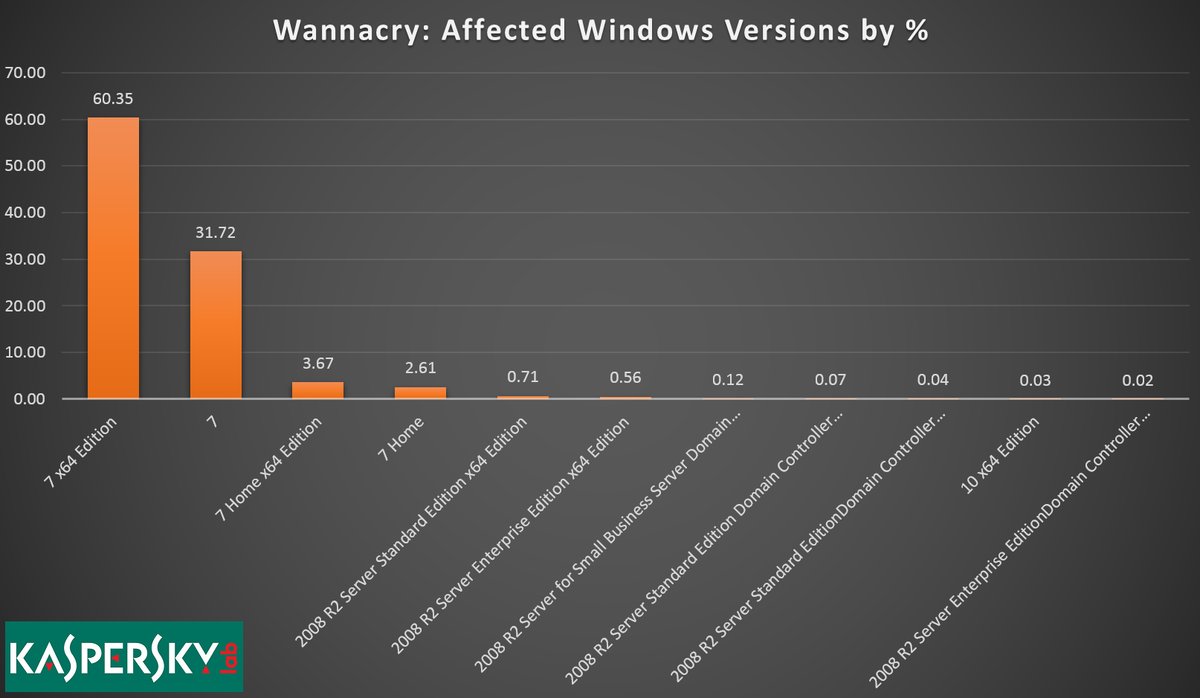
WannaCry exploits windows 7


Patch Remedy stops WannaCry from exploiting Windows7

Plugins4Automate has developed a plugin for LabTech / Connectwise automate that helps with keeping Microsoft products updated with the latest WUA versions. This assistance provided to Labtech allows for more consistent update deployments across all Windows OS types. This proactive approach to patch management helps MSPs prevent such outbreaks like the WannaCry work that hit this last week.

Patch Remedy posted this week how they help prevent breakouts across the MSPs using the Patch Remedy product to keep their Windows systems fully patched.

For more information on how Patch Remedy can resolve your Labtech and Connectwise Automate patching issues please visit Patch Remedy at Plugins4Automate.com

Linux Patch Management for Automate, formerly LabTech

In most MSPs, Linux is a small if any footprint in their overall service offerings and this is reflected in the support given to these systems within the RMM tools they use.  MSPs often pass on managing Linux agents as the RMM tool they have available to them does not lend itself to managing Linux patching and updates.

Demand drives the development of the tools we use and we all know that Windows OS reigns supreme in the managed businesses realm. With MSPs looking to save every dollar where they can, they are not hiring techs to man the helpdesk that are Linux hardened vets. If they are lucky to have 1 guy that knows his way around BASH, he tends to be closer to management. They also most often overlook these systems in any maintenance plans the RMM tool is providing. This tends to leave Linux systems that are widely considered the workhorses of the Internet grossly under patched and vulnerable to exploits.

Like any MSP we had similar issues with maintenance plans as techs came and left taking skill sets with them. It was hard to keep up with managing maintenance when the previous engineer was very Linux savvy and the incoming engineer is not. Where do they pick up and go with patch management of these systems?

In comes a patch manager for Linux that plugs into LabTech, Linux Update Manager.

Plugins4LabTech decided to jump in and help give MSPs the ability to have a standard method and interface inside LabTech that they could use to determine what systems they have. MSPs can know what updates are available for each system and the ability to automate the installs of patches and updates. MSPs can determine if they have systems that have pending updates or pending reboots due to updates.  See what update versions of packages are available and the ability to manually run updates or update a single package.  The first release has basic automation controls for unassisted updating but the P4L team assures us there is several big expansions they want to add to the plugin to include detailed scheduling of updates, ticketing and alerting.

What to try the new Linux Update Manager plugin for free, or visit http://www.plugins4labtech.com

Patch Remedy WUA Manager Plugin for LabTech

header


Patch Remedy is a tool used to help manage the Windows Update Agent. Microsoft’s Windows Update Agent (WUA) is an agent program that works in conjunction with Windows Server Update Services to support automated patch delivery and installation. Labtech uses this agent to help determine what patches are needed by each Windows system and deploys them. Microsoft often updates the WUA which increases the detection of missing patches more current than the installed version of WUA. This can cause you to get a perception that your patching is up to date when in actuality you are massively behind.


That’s where we come in, Patch Remedy automatically scans all windows systems for their current WUA versions and OS type and stores that inside LabTech. It uses that information to perform automated updates of WUA for Windows 7 and 2008 R2 systems. It also takes a look nightly at the number of recent failed hotfixes and updates.

We offer several manual tools to help manage problems seen with WUA.

There are several lists of data about how WUA versions are deployed across your environment. In these lists you maybe able to operate functions to resolve common issues with WUA. There are 2 types of repair for WUA, Normal and Aggressive and there are 2 types of Updates for WUA, Latest and KB3083324.

Repairs: (Normal and Aggressive) Based on KB971058 https://support.microsoft.com/en-us/kb/971058.
Normal Excludes step 4 and Aggressive includes Step 4 of KB

Updates:(Latest and July 2016 Rollup)
Latest: Can be run on any Windows 7, 8, 2008 or 2012 system and will attempt to update the WUA to the most current versions available.
This update is run silently and with the /noreboot switch so should be safe to run at anytime without affecting end user.


PatchSuccess


We have several automated tools to assist with keeping WUA up to date and the patch push status cleared on over attempted patches and hotfixes.

Auto Update: looks for online systems that have earlier versions of WUA and tries to update them to  7.6.7601.18979

Clear Pushed:  The “Pushed” status for a patch means that LabTech has tried twice to install the patch and it didn’t succeed, so it’s not going to try to install it anymore. This function will clear the “pushed” flag from [hotfixes] out so that LabTech may reattempt them.


wuaVersion1


We also provide some insight into what is going on with WUA so you can visually see problems with your WUA environment. Get graphs and charts that show the different deployed versions of WUA and how effective your patching is.


Overview1


Patching alone is not going to keep your clients up to date, adding Patch Remedy to your LabTech patch management system will improve your numbers hands down. Get the most out of your LabTech system with Patch Remedy.


We want to thank BGags of Easthampton, MA for his inspiration and help with plugins concepts. To get more information on LabTech and WUA from BGags go visit his blog post at

 http://www.labtechgeek.com/forum/viewtopic.php?f=7&t=2123


The automated services are on a 4 times a day schedule of 8 am , 12 pm, 4 pm and 8 pm. After installing the plugin and restarting the DBagent service on the LT server you will need to allow time for this service to kick in and run the scans. Once completed you will see the data in the plugin.

The plugin has a master off switch that you will need to turn on before scans will start. you can use this switch to turn off all automated functions on this plugin if needed.

We have added some basic permissions to the plugin. Super Admins and “Patch remedy” class users can open and manage the consoles. Add the User Class “Patch Remedy” to any user in Labtech to allow them access to the management console.

Current Version can be found at http://www.plugins4labtech.com


download


Enjoy

Cubert


Announce Maintenance Plugin For LabTech

logo


Cluck Like a Chicken

Do you have to remind your clients to keep their systems on for maintenance and patching to run each week? Yes me too, I almost have to remind them every week before they go home. Do you know how many hours on the phone that would be if I had to call each of my users to whisper “Hey, Don’t forget to leave your computers on!”  I would have to say way too many to count, so I made the Announce Maintenance Plugin to do that for me.


Let me explain how it works.


trio

In you LabTech Console’s main menu select [Tools] menu and slide down to [Announce Maintenance] sub menu. That will launch the configuration manager to allow you to create the message, set the time of day you want it to launch (Window) and the Title of the Message Box. You can then turn it on or off for all clients by selecting the On /Off switch.

The announcement will only run once in or around the Window time (+/- 6 minutes) the “Eve” before the “Workstation Patch Day” and only for Locations that are set to “Enable Patching Workstations”.

If you have your patch day set to Thursday and your Window set to 3PM then on Wednesday Afternoon at 3 PM the announcement will go out to all “online” workstations at that location.


Enjoy

Cubert

Version 1.0.0.2

download

[How To] – Patching Standalone vSphere 5 ESXi Hosts

So you have a standalone ESXi host or 2 that needs to be patched with the latest updates coming out of VMWare and you do not have a VCenter or are otherwise using the VMWare Update Manager. Here is the basic steps to get you updated and all patched up.


 Here are the steps to getting your ESXi 5 Host patched.

  1. Download the patch file you want directly -> Get VMware Patches Here
  2. Enable SSH for remote support on the ESXi Host by accessing the (Security Profile) under Host Configuration.
  3. Place ESXi host is in Maintenance Mode.
  4. Using the vShpere Client browse your local datastore and make a directory called “Updates”, select this new folder and upload the patch zip file bundle to this folder.
  5. SSH into Host and execute the following command.  (Replace [DATASTORE] and [PATCH_FILE] with your actual file information.


esxcli software vib install -d /vmfs/volumes/[DATASTORE]/Updates/[PATCH_FILE].zip

You should get the following installation result.

   Message: The update completed successfully, but the system needs to be rebooted for the changes to be effective.

Afterwards you should reboot the ESX host and upon it’s return it should now be patched with the build you applied above.

NOTE: If you try and use the old esxupdate command, which  is still there, you will get this message:

~ # esxupdate Usage: This program is not meant to be used directly. Please use esxcli image/software instead.
esxupdate: error: Command must be specified Usage: This program is not meant to be used directly. Please use esxcli image/software instead.