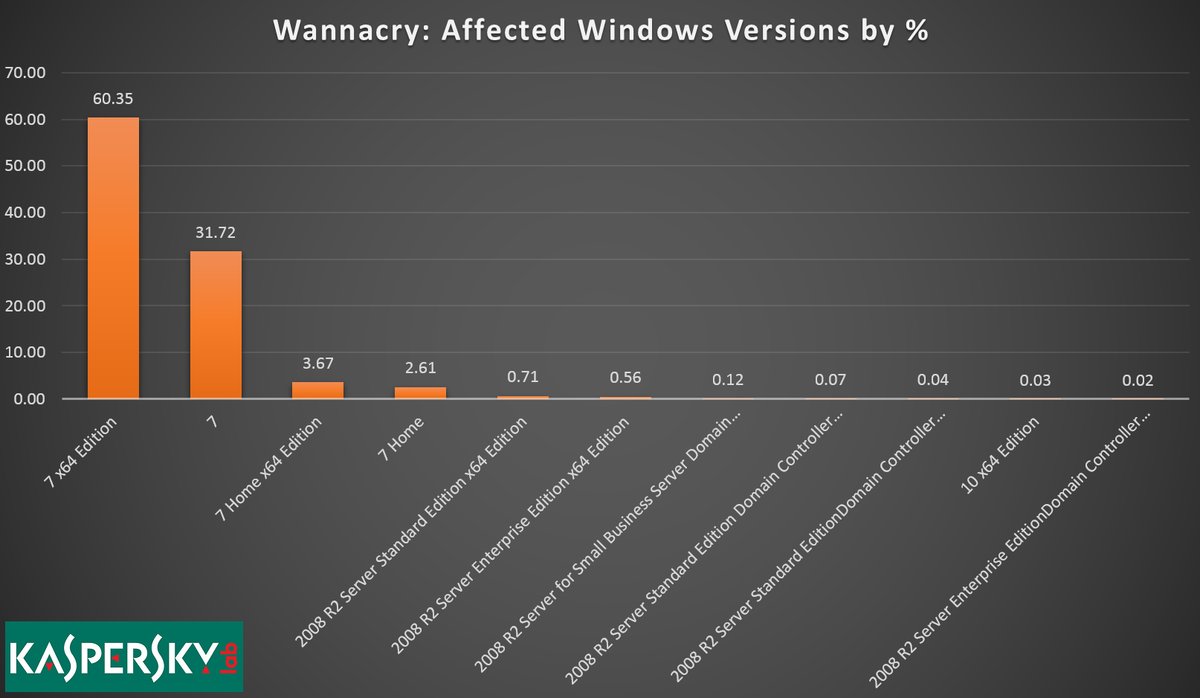
WannaCry stopped in it’s tracks with the help of Patch Remedy for Connectwise Automate

WannaCry exploits windows 7


Patch Remedy stops WannaCry from exploiting Windows7

Plugins4Automate has developed a plugin for LabTech / Connectwise automate that helps with keeping Microsoft products updated with the latest WUA versions. This assistance provided to Labtech allows for more consistent update deployments across all Windows OS types. This proactive approach to patch management helps MSPs prevent such outbreaks like the WannaCry work that hit this last week.

Patch Remedy posted this week how they help prevent breakouts across the MSPs using the Patch Remedy product to keep their Windows systems fully patched.

For more information on how Patch Remedy can resolve your Labtech and Connectwise Automate patching issues please visit Patch Remedy at Plugins4Automate.com

P4A post April newsletter highlighting their latest plugins


Today, Plugins4Labtech released their April newsletter where the talk about some of the latests plugin update they have been working on.  They have made several updates lately to Patch Remedy, Chocolatey and Surflog. Some of these updates add new features while others fix issues being reported by the MSP’s using the plugins.

There are announcements of new plugins they are working on and also the Plugin of the Month. If you use LabTech or Connectwise Automate then you should visit https://www.plugins4labtech.com/blogs/blog/connectwise-automate-plugin-highlights-for-april-2017


P4L wants the Good, Bad or Indifferent opinions you have about their LabTech Plugins

Plugins4LabTech is having a contest and they are giving away a subscription to Surflog to 1 lucky participant. All they want is your honest opinions on the plugins you use. If you think your MSP will benefit from a free year of Surflog then go visit www.plugins4labtech.com and post your reviews.


Linux Patch Management for Automate, formerly LabTech

In most MSPs, Linux is a small if any footprint in their overall service offerings and this is reflected in the support given to these systems within the RMM tools they use.  MSPs often pass on managing Linux agents as the RMM tool they have available to them does not lend itself to managing Linux patching and updates.

Demand drives the development of the tools we use and we all know that Windows OS reigns supreme in the managed businesses realm. With MSPs looking to save every dollar where they can, they are not hiring techs to man the helpdesk that are Linux hardened vets. If they are lucky to have 1 guy that knows his way around BASH, he tends to be closer to management. They also most often overlook these systems in any maintenance plans the RMM tool is providing. This tends to leave Linux systems that are widely considered the workhorses of the Internet grossly under patched and vulnerable to exploits.

Like any MSP we had similar issues with maintenance plans as techs came and left taking skill sets with them. It was hard to keep up with managing maintenance when the previous engineer was very Linux savvy and the incoming engineer is not. Where do they pick up and go with patch management of these systems?

In comes a patch manager for Linux that plugs into LabTech, Linux Update Manager.

Plugins4LabTech decided to jump in and help give MSPs the ability to have a standard method and interface inside LabTech that they could use to determine what systems they have. MSPs can know what updates are available for each system and the ability to automate the installs of patches and updates. MSPs can determine if they have systems that have pending updates or pending reboots due to updates.  See what update versions of packages are available and the ability to manually run updates or update a single package.  The first release has basic automation controls for unassisted updating but the P4L team assures us there is several big expansions they want to add to the plugin to include detailed scheduling of updates, ticketing and alerting.

What to try the new Linux Update Manager plugin for free, or visit http://www.plugins4labtech.com

Office365 for Labtech Plugin special offer for MSPs

Access Office 365 for all your clients in a single pane of glass from inside LabTech in just a click with the all new Office 365 For LabTech plugin from the guys over at Plugins4Labtech (P4L). We here at P4L want to give all MSPs a chance to experience how having Office 365 at the techs’ fingertips can save time and money so we are offering 50% the life of the subscription if purchased in February. Just use the PROMO code TRYOFFICE365 at the checkout at plugins4labtech.com. You will receive 50% off your monthly subscription. The catch? We want your feedback. What do you like and what do you not like? After you take it for a spin, send your feedback to support@plugins4labtech.com.


What an incentive to come try a tool that puts control into the hands of the helpdesk!

Take me to the plugin

VMWare ESXi 6.5 CIM Data Disabled by Default

I was recently tasked with an issue where our CIM probe was failing during CIM requests to new VMWare ESXi 6.5 servers we deployed. We were getting connection rejected failures from our probes which resulted in no valuable data being returned. We started following the breadcrumbs which lead us back to the ESXi host. We opened the UI and checked the health monitor in the UI and found it was showing “No sensor data available”. The first thing we checked was to see if the sfcbd-watchdog was running, and it was not. By default, this service was turned off, or so we thought! We turned on the service and the UI reported that the service was now running.


Even after several refreshes of the UI it stilled showed running but we still received a connection rejected. We rebooted the ESXi host and after it came back we tested the connections again and are still failing. We reopen the web UI and looked at the services again and there was our watchdog service stopped. We had set the service to autostart with host so this lead us to believe it must be dying at some point.


The best way to see what a service doesn’t like is to login to ESXi host using SSH and manually start the process and see what it’s output is. A quick /etc/init.d/sfcbd-watchdog start showed us that the service was “Administratively disabled”.

After digging around Google for some reference to this new data we came across a blurb about setting an option to allow CIM manager to run.

The command esxcli system wbem set –enable true followed by /etc/init.d/sfcbd-watchdog start allowed the sfcb-HTTPS-Daem process to start. This process is the TCP Listener that takes CIM requests from probes like ours and returns the health of the hardware.

You should get an output like the following

/etc/init.d/sfcbd-watchdog start
sfcbd-init: Getting Exclusive access, please wait…
sfcbd-init: Exclusive access granted.
sfcbd-init: Request to start sfcbd-watchdog, pid 69438
sfcbd-config[69448]: No third party cim providers installed
sfcbd-init: snmp has not been enabled.
sfcbd-init: starting sfcbd
sfcbd-init: Waiting for sfcb to start up.
sfcbd-init: Program started normally.


Invoking lsof -nPV | awk {‘count[$2]++}END{for(i in count)print count[i], i’} | sort -n in the SSH console will produce a list of running processes minus all the junk. You can use this list of processes to determine what is running on the ESXi Host.


We also used esxcli network ip connection list to get a list of ports the ESXi host was listening on to help determine if the port 5989 was active.


If you are deploying VMWare ESXi 6.5 in your environments and need CIM health data, remember to enable it and do not just assume that the WebUI is telling you it is active.


Check out our ESXi Health Monitor for LabTech (Automate) here

New premium Office 365 for LabTech plugin


Plugins4Labtech (P4L) has reached a milestone with our Office 365 for LabTech plugin. After years of development, accolades from LabTech and managed service providers (MSPs) across the globe, we are finally ready to promote our Office 365 for LabTech plugin on www.plugins4labtech.com.

P4L is moving the Office 365 for LabTech plugin out of the development/beta phase (free) and into main production (premium plugins). This comes after several new improvements to the plugin and the successful trials of the plugin over the last six months. P4L would like to thank all the people involved with the testing and trials of this very inventive plugin. P4L also wants to thank everyone who helped with the strenuous testing allowing us to put together a very powerful tool. Trial (free) versions of the product’s license will expire on January 31.

We recommend users download the latest version of Office 365 for LabTech now.

Office 365 for LabTech is now a premium plugin that allows the collection of data and maintenance of Office 365, Azure and SharePoint services. From simple password unlocks for end users to setting ”out of office” messages for users’ email boxes, the Office 365 for LabTech plugin has what the help desk at your MSP needs—quick and easy access to common tools to manage Office 365.

P4L hopes you will come and join in the revolution of technology. Use P4L as your partner to automate.

Stalled Agents Detector For Labtech Automate


Sometimes you have a number of machines where the LT agent gets stuck in an “executing” state. When this happens the only thing the machine will do is check in to the LT server. Solution is a reboot or restart of the LT service. Stalled Agents plugin helps identify and allows you to repair these agents when this happens.


Plugins4Labtech has created a new  plugin for LabTech that is easily installed into the LabTech RMM platform (Connectwise Automate). This plugin finds and lists systems with executing commands and shows you how many each agent has currently running. Agents with excessively high numbers are more likely stalled (not responding to commands). Typically you would need to cancel the executing commands and restart the LabTech agent services to resolve. If the agent is not processing all the other commands it will not process a restart agent command. The only methods are to have local user restart service which is very manual and time intensive. This also shows you have a whole in your coverage if local users are needed to manage system. The next option is to try some remote control access which is very manual and time consuming.


We have a better idea!

Our plugin has 2 options to handle this remotely, the first is using RPC from one agent to another to kill and restart the agent and the second is to use RMM+ for ScreenConnect to issue remote commands bypassing the LT agent.

This makes a great tool for any MSP using Labtech. Come check out this plugin and many other free plugins available for LabTech (Connectwise Automate) at www.plugins4labtech.com


How-to keep a user synced with DirSync, to be excluded from DirSync while retaining the AD user

Converting DirSync User to a Cloud user in 365

I’m not sure if anyone has run into this problem before, so I figured I would share a quick fix that I found to take care of this problem. The easiest process that I have found to accomplish this without having the user be deleted each time dirsync runs is the following:

  • On a domain controller in the environment, move the user out of the DirSync scope. The Domain has a Synced and UnSynced OU, moving the user to the UnSynced OU accomplishes this.
  • Force replication on the DC a few times (unless there is only one DC in the environment)
  • Login to Office 365 and delete the user from Office 365- this will put them in a soft-deleted state.
  • From a DC in the users environment, run all of the DirSync/Azure AD Sync profiles to allow the changes to sync with 365
  • From Office 365 web portal, find the users mailbox in the Deleted Users section, select the appropriate user and re-attach the mailbox. You will need to specify a new password for the user to use when accessing Office 365 since they are no longer synced with AD.
  • Open up a PS-session to Office 365, Import the appropriate modules including MSOL modules
  • Run the following command substituting the appropriate value. The ImmutableID is what will prevent DirSync from deleting the user’s mailbox each time it is run. ImmutableID links the 365 account to the AD account and is what DirSync looks at to bind the two accounts (generally speaking).

    Set-MSOLUser -UserPrincipalName %user@domain.com% -ImmutableID $null

  • From a DC in the user’s environment, run all of the DirSync/Azure AD Sync profiles to allow the changes to sync with 365
  • Validate that you can login via Office 365 with new password and that the account shows being in the cloud.


Good Luck!

VMWare ESX Hardware Health monitor for Labtech

headerlogo


Plugins4LabTech has created a new plugin that will monitor the CIM data announced by the hardware running VMWare ESX software. We can report on any hardware that follows CIM standards and makes it’s hardware statuses known to VMWare. This simple to use plugin deploys in just minutes and can be setup by anyone with little or no  knowledge of LabTech functions and processes. If you want to see in action the easiest ESX Hardware Health Monitor available for LabTech then have a peek at our video on our YouTube Channel.


Never be in the dark again over hardware health!


Get alerts and tickets when hardware failures are detected. Using the monitor agent supplied with the plugin get quick responses to failures and warnings directly from VMWare. When alarms happen get emails, tickets and messaging alerting you to the failure that is taking place on the hardware.

Plugins4LabTech’s VMWare Health Monitor plugin for Labtech uses an agent to talk to VMware ESX hosts and retrieves the CIM data for the hardware the ESX host is running on. The plugin processes this data and stores it in LabTech’s database to be used in the views and alarms the plugin issues when failures are seen. You will see data on your RAID arrays and SCSI controllers, Power Supplies failures and system overheats. If the hardware is reporting it to VMWare we can see it.


Main ESX Health Monitor Console

The main view lets you see all the ESX hosts under management sorted by Client. In this view you are able to turn on and off the collection of data, set the interval of how often the data is collected and enable alerting for any seen failures.

ViewMenu


ESX Health Monitor Client Console Tab

The Client Console tab is where you would add and delete the ESX Hosts you want to monitor. You are able to force the update of ESX CIM data by selecting to rescan ESX hosts and you can view the full CIM data list of any ESX Host.

Clienttab


ESX Health Monitor CIM Data

The CIM Data view shows all the collected CIM data on a given ESX host. If any data is in a state not considered ok then those lines will be represented with warning and alarming icons. You will also get the hardware manufactures data back and in the case of Dell that is the Hardware type and Service Tag.

CIMData


ESX Health Monitor Internal Agent

Under the main view you can select to enable alerts. When you do this agent is created in the internal monitors of LabTech. You can use this monitor to email, ticket, alert or message anyone when failures are picked up.

monitor

A simple plugin all self contained and easy to deploy.  Just a few clicks to configure and you have data. So easy to use anyone can setup and have it working in just a few minutes.


The plugin is currently with the Squid Squad getting a final review before we release the new plugin. Follow our release notes at http://support.plugins4labtech.com

download