[Solved] – Unable to take VSS Snapshot and transfer data for ‘C:’ Unable to take VSS Snapshot of volume(s) because the VSS subsystem is in a bad state.

App Asure Replay CoreAppAssure Replay backup reports Errors, ‘Unable to take VSS Snapshot of volume(s) because the VSS subsystem is in a bad state.’ or ‘Error taking snapshot of volume(s): AddToSnapshotSet failed when trying to add volume ‘C:’ – VSS Provider is not registered’


I found this to be a fairly common issue when deploying new Replay agents out to Windows 2003 servers. There are several things that should be addressed when deploying Replay agents to Windows 2003 Servers including repairing LSP, refreshing and / or verifying VSS states and removing conflicting software. I have had great success resolving these types of issues by following these simple steps.

#1  Remove Offending Software Conflicts

Offending Software:

Acronis Backup & Recovery 10 Agent

Symantec Backup Exec Remote Agent for Windows

any 3rd party backup software


#2 Reset VSS Writers

I use a simple bat file that re-registeres all my VSS writers and then I follow that up with a reboot. Below is the bat script commands, copy them to a file, name the file vss.bat, then run the file. It should shutdown a few services and re-register the VSS writers.  reboot is needed after this has completed.

net stop “System Event Notification”
net stop “COM+ Event System”
net stop “Microsoft Software Shadow Copy Provider”
net stop “Volume Shadow Copy”
cd /d %windir%\system32
net stop vss
net stop swprv
regsvr32 /s ole32.dll
regsvr32 /s oleaut32.dll
regsvr32 /s Vss_ps.dll
vssvc /register
regsvr32 /s /i swprv.dll
regsvr32 /s /i eventcls.dll
regsvr32 /s es.dll
regsvr32 /s stdprov.dll
regsvr32 /s vssui.dll
regsvr32 /s msxml.dll
regsvr32 /s msxml3.dll
regsvr32 /s msxml4.dll
net start “COM+ Event System”


#3 Repair the Layered Service Providers

Layered Service Provider (LSP) is a feature of the Microsoft Windows Winsock 2 Service Provider Interface (SPI). A Layered Service Provider is a DLL that uses Winsock APIs to insert itself into the TCP/IP protocol stack. Once in the stack, a Layered Service Provider can intercept and modify inbound and outbound Internet traffic. It allows processing of all the TCP/IP traffic taking place between the Internet and the applications that are accessing the Internet (such as a web browser,  email client or Replay agent.).

This is a common problem in Windows 2003 especially if you use Kaseya agents on these systems. The kaseyasp.dll causes some issues with transferring the file across the network. Luckily this is a really easy fix. Download and run LSPFix.exe on the Windows 2003 Server system. It will find the Kaseya Dll issue and repair it for you.


#4 Verify no Disk Errors are present

This often overlooked but a simple “CHKDSK C:” at the command prompt will scan your disk and verify if there are any errors on your disk. Using the “/F” switch you can fix the errors. Make sure you have clean disks.


By following these steps you should resolve 98% of your common backup issues with Replay clients failing snapshots or not transferring the snapshot once it has been taken.


I hope this helps fellow AppAssure users out there in cybertown.


Enjoy

Cubert 😎

[Solved] – Always getting message “Windows can’t update important files and services while the system is using them”


Everytime you try to run the Windows Updater you always get the message  “Windows can’t update important files and services while the system is using them.  Save any open files and restart the computer, and try to check for new updates.“   This is caused by a Registry Key that has not been removed after a previous update.

There is a simple solution for some:

1. Open regedit.exe

2. Navigate to the Registry Key  “HKLM/Software/Microsoft/Windows/CurrentVersion/WindowsUpdate/Auto Update

3. Look for Registry Key “RebootRequired”.

4. Delete the Registry Key. Do not look for a value, there will be a KEY(folder) called “RebootRequired”

5. Reboot the Machine .

6. Run Windows update again.

If this fails to resolve issues you can try the following:

Empty your temporary Internet Files Folder
Open Run Command (Windows key + R)
type: cd %temp%
Empty the contents of that folder (del *.*)
Restart your computer

You can also give this a try:
1. Click Start, type msconfig in the Start Search box, and then press ENTER.
User Account Control permission
If you are prompted for an administrator password or for a confirmation, type the password, or click Continue.
2. On the General tab, click Selective Startup.
3. Under Selective Startup, click to clear the Load Startup Items check box.
4. Click the Services tab, click to select the Hide All Microsoft Services check box, and then click Disable All.
5. Click OK.
6. When you are prompted, click Restart.
7. After the computer starts, check whether the problem is resolved.

This should solve your issue and allow you to Windows Update to install the next round of patches.

Good Luck!


Cubert

😎

[Solved] iTunes – The procedure entry point sqlite3_dll wal checkpoint could not be located in the dynamic link library SQLite3.dll

iTunes 10 Fails to Backup iPhone or log in to iTunes Account

This week I was presented with a new problem.  A user was unable to back up her iPhone, log onto her iTunes account. Or run any updates on the device. Very frustrating for the user.  To top it off, every time her computer booted up, she received the following error:  “The procedure entry point sqlite3_dll wal checkpoint could not be located in the dynamic link library SQLite3.dll.” or similar error with Mobile update in the text also appeared.

After uninstalling  all apple products and re-installed iTunes, the problem still persisted.  Usually, when going to the iTunes store and no music shows up, a simple net winsock will fix the issue, however no dice here.  After some research, it appears that this is an issue that happens with some iTunes 10 installs.   It appear that this sqlite file does not always get placed in the appropriate area.  Anyway, if you come across this problem here is the fix.  I don’t think I have ever seen a client rush to buy music, as she did today!

To fix the dll error, go to this folder:
C:\Program Files\Common Files\Apple\Apple Application Support
Right click and copy this file.

SQlite3.dll
Next, go to this folder:
C:\Program Files\Common Files\Apple\Mobile Device Support
Right  click and paste the file into the folder.

You don’t have to delete the file from the copy location, it actually needs to be in both places.


Good luck


Cubert 😎

[Solved] IPhone passes Exchange 2010 setup but then gets ‘Cannot Get Mail. The connection to the server failed’

So your IPhone is not getting Exchange email after setting up your account and it verifying the account during the setup?

Here is what may be going on.

The ‘Cannot Get Mail.  The connection to the server failed’ error may be the cause of a simple mis-configuration in the Microsoft Active Directory services for that user. To see if it is this issue you will need to open the Active Directory Users and Computers, Select the VIEW menu from the top and click on “Advanced Features”. Now open the properties on the user having the issue and select the “Security” tab. Under this tab will be windows with user accounts listed and a “Advanced button” at the bottom. Select this button and find the check box “Include Inheritable permissions from this object’s parent” . If this is the problem you will find the box “unchecked”. Just check the box and try again. You should see mail start to flow.


Enjoy

Cubert

😎 BigMACDaddy 😎


New BBWin GUI Version 2 Release for BBWin XYMon Client

Today we are releasing a brand new fully redesigned BBWin GUI application that will allow the user to quickly and easily add or update the BBWin.cfg file. It is a small standalone application written in C# that provides for most of the configurations that you can find in the BBWin.cfg file. From managing your disks to selecting processes and services to monitor this tool does it all.

When you first launch the GUI it will check to see if it sees the BBWin Service installed on your client and if not will allow you to download it directly from SourceForge.

The next option will be to open an existing cfg file or download our default file.

If you select open existing you will be presented with a Windows Explore window to navigate to the file you want to open. If you select to download the defaults it will pull a generic file from Squidworks.net and start you out with nothing configured. It will auto populate the system name and the default disks, CPU, Memory and Pagefile will be monitored.

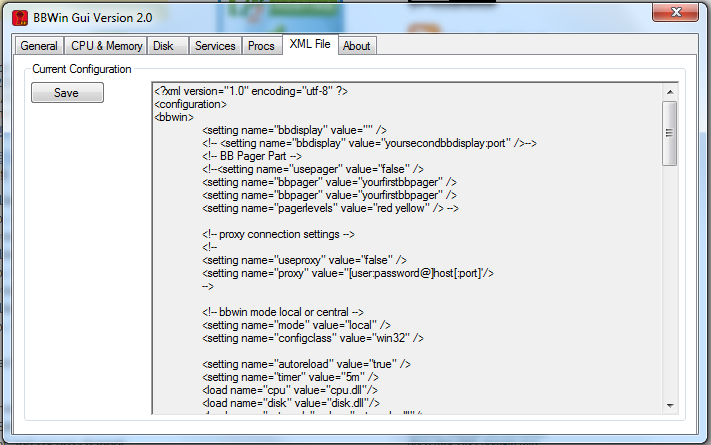
The BBWin GUI is uses a multi tab display to configure the different  areas of the BBWin.cfg file. As you navigate across each TAB, different options will be displayed for you to modify as needed. We have incorporated sliders and simple presets areas to make it easier to adjust thresholds without making mistakes to format of the XML file. After making all your changes it is easy to save your file and watch BBWin reload automatically.

DOWNLOAD  Here -> BBWin_Gui_v2.2

Screen Shots


DOWNLOAD  Here -> BBWin_Gui_v2.2

Enjoy

Cubert 😎


Kaseya Agent Procedure -> Check Active Directory for Active User Changes


Agent Procedure “GetActiveADUsers” is a small script I created that grabs the list of all “active” users in all OU’s and pipes that information along with their email addresses to a file. The script then grabs file and stores that file in the GetFile Area inside Kaseya. The script is also setup to alarm on change which will allow you to add a monitor for “getfile” that will email you or do something when the list of users changes.

Makes a great tool when you have large AD environments where there are a lot of OU’s and/or users are  scattered all over the AD infrastructure.  The text file created provides the users full name, email address and dept name if filled out.

Get script here -> Procedure GetActiveADUsers

This is a zip file with the procedure XML file inside. You will need to assign this script to only Active Directory Servers and schedule it for once a day. Then select the Monitor Tab and then Alerts and create a Alarm using the “Get Files” option in the “Select Alert Function ” drop down list. Have it email you if the alarm is struck.

That’s all there is to it!


Enjoy Cubert 😎


[Solved] Appassure Replay snapshots or base image fails to copy from Agent to Core on or after new installs

So you may have a Windows 2003 server or servers that after installing the agents, configuring permissions and setting system to Protect on your core keeps failing to grab the first snapshot from your system.

This is quite common in Windows 2003 but may see it in 2008 as well. The issue is that the Winsock is messed up. Download and run LSPFix.exe on the client system and restart the agent services afterwards. Then go back to the core and select to force new snapshot to start the download. You should see the system start the download with in 5 minutes and no more errors in events.

 I am using Replay version 4.7.2 at the time of this post

Error that may show up when fix is needed:

Logger: tevolib.txtrack
Context: PG=VolsWithInterval60Minutes Volume=\\?\Volume{741d2f02-3eb0-11dd-8e1a-806e6f6e6963}\ DriveLetter=C:
Source Location: TransmissionTracking.cpp:115
Details:
Transmission of volume ‘C:’ started when another transmission of that volume is already in progress

Logger: tevoSource.snapshotHandler
Context: PG=VolsWithInterval60Minutes Volume=\\?\Volume{741d2f02-3eb0-11dd-8e1a-806e6f6e6963}\ DriveLetter=C:
Source Location: SnapshotHandler.cpp:992
Details:
Transfer failed on volume: C: Epoch: 204 Target: CNSCOLO-BDR Port: 8001 – Unspecified error

Logger: exceptions.seh
Context: PG=VolsWithInterval60Minutes
Source Location: exceptions\SehHandler.cpp:151
Details:
Encountered a serious error EXCEPTION_ACCESS_VIOLATION.  Exception dump logged to C:\Documents and Settings\cns\Application Data\AppAssure\ErrorDump-TevoSource.exe-2012-02-28-11-43-41-0625-41.dmp.bz2


Enjoy

Cubert 😎

[Solved] Prevent previous credentials from another session/domain to auto fill when starting a RDP session to a Windows Server 2008 box

Who has not started a RDP session to a Windows 2008 Server or Windows 7 system and had the previous domain credentials popup as the default login for the next system you touch. Well if you are like me and touch many different customers each day then you have no doubt had the login for your Windows 2008 terminal session show the log on of the previous domain that your were logged in to. This can be a big pain in the “arse” if you know what I mean.

Well here is how to fix that problem:

On your own PC go to the registry key

HKEY_CURRENT_USER\Software\Microsoft\Terminal Server Client\Servers\127.0.0.1

Right click and select  permissions on the 127.0.0.1  folder then set permissions to deny yourself read access to it. As soon as you do this, you should start seeing the right domain name when opening a terminal session  to Windows 2008 servers or Windows 7 workstations.


Enjoy

Cubert 😎

[Solved] – Problem loading a certificate to be used for STARTTLS Purpose in Microsoft Exchange 2007


Generally this condition occurs if anyone of the following conditions is true:

1. The fully qualified domain name (FQDN) that is specified in the Warning event has been defined on a Receive connector .

2. Send connector on a Microsoft Exchange Server 2007 transport server, and no certificate is installed on the same computer that contains the FQDN in the Subject or Subject Alternative Name fields.

 3. A third-party or custom certificate has been installed on the server and it contains a matching FQDN. However, the certificate is not enabled for the SMTP service.

The warning event indicates that there is a problem loading a certificate to be used for STARTTLS purposes,  here is how to resolve these issues.

1. Open “Exchange Management Shell”.
 
2. Write “get-ExchangeCertificate” and press on “Enter” button.
 
3. Write down the Thumbprint of the certificate that reflect the required FQDN name of the server.
 
4. Review the current certificate that use by the Exchange server and
 
         each certificate function.
 
5. Write “Enable-ExchangeCertificate -Thumbprint ThisIsYourThumbPrintKey -Services “SMTP”
 
       and press on ‘Enter” button. Replace “ThisIsYourThumb…” with the value of -Thumbprint obtained in stage 3.
 
6. Restart the Exchange server.

Now your cooking with SSL Security!!.

Enjoy

Cubert  😎


For Creating a Certificate or Certificate Request for TLS check the below article
 
http://technet.microsoft.com/en-us/library/aa998840.aspx

How to display hidden device drivers in Windows Device Manager

Ever wanted to find that other ethernet device that was pulled from you system but don’t see it anymore in Microsoft  Windows Device Manager? What about a pesky AOL adapter driver or some other non existant device that you want to get rid of?

In order to show hidden devices:


  1. Right click My Computer and Select Properties
  2. Click Advanced tab
  3. Click Environment Variables
  4. Below the bottom Environment Variables window pane (System Variables), click New
  5. For Variable Name, enter devmgr_show_nonpresent_devices
  6. For Variable Value enter 1
  7. Click OK. OK to close My Computer
  8. Open Device Manager, click on View, select show hidden devices from the menu. Most of the orphans will be in non-plug and play drivers and the icons will appear grayed out. You can right click the grayed out driver and click uninstall.


Enjoy

Cubert  😎