Connectwise SQL Query -> Get resent invoiced customer contact list for Microsoft Partner Survey

Do we have any Connectwise Sql hackers out there that might need a SQL script to grab a list of all primary company contacts for all companies invoiced over the last 6 months so you can submit that to Microsoft Partner Portal for the survey Microsoft expects you to send out twice a year?  You know the one where you submit a excel spreadsheet of those customers and Microsoft send them a survey on your behalf.

Well here is a quick SQL Query that will produce that very list for you. Just export to a tab delimited text file.


SELECT [dbo].[v_Company_Contact].[Company_Name], [dbo].[v_Company_Contact].[First_Name], [dbo].[v_Company_Contact].[Last_Name], [dbo].[v_Contact_Communication_Type].[Description] AS Email,[dbo].[Contact_Communication].[Description] AS Phone
FROM [Your Database Name].[dbo].[v_Company_Contact]
JOIN [dbo].[v_Contact_Communication_Type] ON [dbo].[v_Contact_Communication_Type].[Contact_RecID] = [dbo].[v_Company_Contact].[Contact_RecID]
JOIN [dbo].[Contact_Communication] ON [dbo].[Contact_Communication].[Contact_RecID] = [dbo].[v_Company_Contact].[Contact_RecID]
WHERE Company_RecID IN (SELECT Company_RecID
FROM [Your Database Name].[dbo].[v_rpt_Invoices]
WHERE Date_Invoice between (‘01/01/2012‘) and (‘07/01/2012‘)
Group By Company_RecID)
and [dbo].[v_Company_Contact].[Default_Flag] = ‘1’
and [dbo].[v_Contact_Communication_Type].[Communication_Type_RecID] = ‘1’
and [dbo].[Contact_Communication].[Communication_Type_RecID] = ‘2’


Find the line in the query “WHERE Date_Invoice between (’01/01/2012′) and (’07/01/2012′)”  and change the dates for any range you want to include also change the name of the database to reflect your CW database. WordPress changes ( ‘ ) in to ( ` ) when you copy and paste SQL query so you may need to go through query and revert them back to ( ‘ ). See dates and any thing that has a “=” before it.


I hope my SQL Foo helps some one out there in Connectwise land


Cubert 😎

Free Digium SwitchVox ConnectWise Switchboard Widget aka (ConnectWise Callers)

From the skunk works here at Squidworks.net comes the ConnectWise Callers widget for the Digium SwitchVox PBX switchboard.  The ConnectWise Callers Widget queries your Connectwise database for information about inbound callers calling in to your SwitchVox PBX. When a phone number is picked up from the caller ID it is then used to query the contact and company tables inside Connectwise. If it finds a match then it queries for key information about the caller including what company they are associated with and any personal information kept in the contact database.


The widget collects:

  1. Callers full name
  2. Callers Title
  3. Company Name
  4. Nick Name
  5. Married Flag
  6. Spouse’s Name
  7. Children Flag
  8. Children Info
  9. Anniversary Date
  10. Hobbies

Of course this all relies on your database being complete and accurate, ConnectWise provides the table and the ability to add and edit this information within your company contacts area. Using this widget to query this information as fast as you can pick up the phone allows you to be heads up on your caller, making calls more personal and closing sales.  The best part is it’s free!

Download ConnectWiseCallers here –> Connectwise-Callers-switchboard

The download zip file contains a single php file and 2 images. Extract all files to the same directory inside a web server that is accessible from your SwitchVox PBX .  Your web server can be Windows or Linux but must be able to use (mssql_connect) to access Microsoft SQL servers (ConnectWise Database). If you are using Linux and need some help getting MSSQL working with Apache and PHP then see my how-to post https://squidworks.net/2011/07/how-to-setup-ubuntu-and-php-to-use-mssql-microsoft-sql-server/  and you should be up and running within minutes. You will need to edit the ConnectwiseCallers.php file between line 48 and 52. Edit the following lines to reflect your ConnectWise Database and user access to database.

//Connectwise Database access
$cwuser = “ConnectwiseUser”;             <— Your Connectwise SQL User
$cwpass = “ConnectWisePass”;             <— Your SQL Password
$cwdb = “cwwebapp_companyDB”;   <— Your Connectwise Database name
$cwserver = “cw.yourdomain.com”;  <— Your SQL server address

You will need to log into the SwitchVox Admin area and add the Custom panel. Goto the Tools menu and select Switchboard Panels, You should see the following:

Select the Custom Switchboard Panels tab from the admin and then select Create Custom Panel button.


  1. Panel Name = ConnectWise Callers
  2. Panel Description = Queries inbound callers for Connectwise information
  3. Panel URL = http://yourWebServerAddress/switchboard/ConnectwiseCallers.php?NAME=%CALLER_ID_NAME%&NUMBER=%CALLER_ID_NUMBER%&EXT=%EXTENSION%&LOAD=%FIRST_LOAD%
  4. Select the extensions you want to allow access to widget


Save Custom panel and launch your Switchboard, once the switchboard loads select your new panel from the add panel menu. You should get a ConnectWise Callers Image in you panel if it is accessible and your URL is correctly addressed. The panel should start out looking like this:


This is version 1 of the widget, we will be looking at expanding the widget in the next versions to allow you to edit the information so you can update you customers contacts on the fly. If you have ideas on data or features you would like to see in the next versions of the widget feel free to post your comments here and we will see if we can add them into the widget.

Enjoy

Cubert 😎

Kaseya Agent Procedure – Local Admin Audit

Cubert has created another simple auditing script for Kaseya Agent procedures. This script grabs all the users and groups in the Local Administrators Group of any Windows system and saves then to a file on the Kserver. Every time the script runs it will upload and compare the files for differences. If it finds that a user or group was added or removed it will alert the Kserver. If you have a GetFile Alarm rule setup in the Monitor Menu -> Alerts -> GetFile  to create a ticket or email you then you will receive an alert anytime the script is run and changes are seen.


Download and unzip the XML file and import it in to Kaseya Agent Procedures. There is no scripts or extra files needed with this guy so you only need the XML file inside the zip.

Download here -> Procedure-LocalAdminAudit


Enjoy

Cubert 😎

Kaseya Agent Procedure – Make A Mac Sing A Stupid Song

Cubert has noting better to do with his time then to play with the Text to Speach functions available on a Mac. Well today he has put together a smaill Kaseya Agent Procedure that sings a little song to to the unspecting user of a Mac system.  Just import the script and launch it against the unsupecting to get a quick laugh. You can do one further by modifing the script and using it to announce the start or finish of a script or process your running on a users Mac. A good example of this would be to announce to the user that backups have started and to not sut down the system untill the voice tells you to.

Download – > Kaseya Agent Procedure_Make_Mac_sing_stupid_song

There is a lot fo things you could use this for but the funnest of all is to just let your imagination run wild!!


You can edit the script and change the voice sytles, the text it speaks or the volumn you want to set for the speakers.


Enjoy


Cubert

[Kaseya Agent Procedure] Mac OSX and Windows – Send A Friend a YouTube Video Surprise!

Kaseya YouTube Me Script Plays Youtube videos on desktop inside a player.

Here is a script that carries a warning, Use Wisely… I am not responsible for misuse! If you play porn on the bosses PC why he is in a meeting with the board of directors I am not liable for your termination and or execution depending on the boss…

Now with that disclaimer said here is what I made for you. This script will “based on the OS installed” (Windows) copies a portable version of VLC to c:\temp and runs it with a URL as a option or (Mac OSX) Downloads a DMG of VLC and installes it if not found already on system and then runs the same URL.

The URL is a cartoon of a stick guy beating himself to death while a stupid song plays in the backgrond. It will pop up on the desktop of the user logged in and if the speakers are up it may be a jolt!

Here are the files you will need

The script -> Procedure YouTube Me

WIndow Portable VLC -> Windows VLC

Mac OSX VLC (dmg)    vlc.2.0.1 

Download all 3 files and upload the VLC files to your VSA SharedFiles Folder. Edit script after importing it into Kaseya and make sure you do not have any red lines in code. If so you may have file location issues, check where you uploaded VLC files. Post here any good YouTube URL to use for script.

Have fun

Cubert 😎


[Kaseya Agent Procedure] Mac OSX Diagnostic data collection scripts

Collect Application, Network, Firewall, Ethernet and Diagnostic information from Mac OSX

Download Here -> MacOSX Diagnostics

Cubert (Me) has been tasked with learning and creating useful scripts for Mac OSX systems. Here are some of the first scripts to come out. Our techs requested after the first week using the tools in Kaseya what would help make job just a bit easier and they reported back wanting some basic information stored in Kaseya that keeps them from having to access system to confirm settings.


That spawned on a quick set of scripts that go out and collect the following information and stores it in a text file inside Kaseya available in the “Get File” area inside LiveConnect -> Agent Data Select Get File tab or during a hover over a orb when pop out information window shows up you can click “Get File”. Each file is named based on test run and makes for quick access to Applications and firewall settings.

Enjoy

Cubert  😎

New BBWin GUI Version 2 Release for BBWin XYMon Client

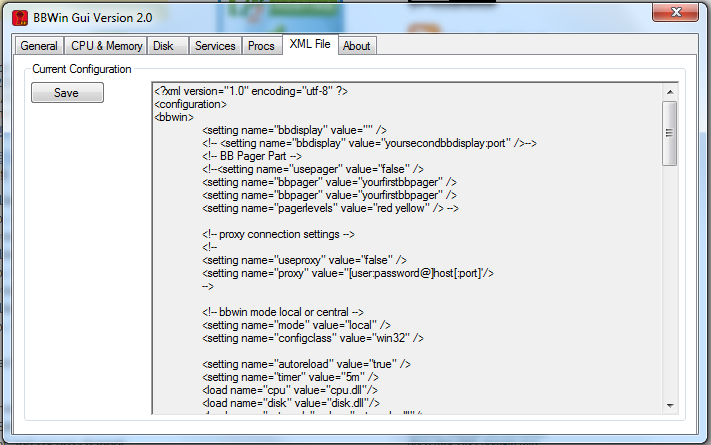
Today we are releasing a brand new fully redesigned BBWin GUI application that will allow the user to quickly and easily add or update the BBWin.cfg file. It is a small standalone application written in C# that provides for most of the configurations that you can find in the BBWin.cfg file. From managing your disks to selecting processes and services to monitor this tool does it all.

When you first launch the GUI it will check to see if it sees the BBWin Service installed on your client and if not will allow you to download it directly from SourceForge.

The next option will be to open an existing cfg file or download our default file.

If you select open existing you will be presented with a Windows Explore window to navigate to the file you want to open. If you select to download the defaults it will pull a generic file from Squidworks.net and start you out with nothing configured. It will auto populate the system name and the default disks, CPU, Memory and Pagefile will be monitored.

The BBWin GUI is uses a multi tab display to configure the different  areas of the BBWin.cfg file. As you navigate across each TAB, different options will be displayed for you to modify as needed. We have incorporated sliders and simple presets areas to make it easier to adjust thresholds without making mistakes to format of the XML file. After making all your changes it is easy to save your file and watch BBWin reload automatically.

DOWNLOAD  Here -> BBWin_Gui_v2.2

Screen Shots


DOWNLOAD  Here -> BBWin_Gui_v2.2

Enjoy

Cubert 😎


Kaseya Agent Procedure -> Check Active Directory for Active User Changes


Agent Procedure “GetActiveADUsers” is a small script I created that grabs the list of all “active” users in all OU’s and pipes that information along with their email addresses to a file. The script then grabs file and stores that file in the GetFile Area inside Kaseya. The script is also setup to alarm on change which will allow you to add a monitor for “getfile” that will email you or do something when the list of users changes.

Makes a great tool when you have large AD environments where there are a lot of OU’s and/or users are  scattered all over the AD infrastructure.  The text file created provides the users full name, email address and dept name if filled out.

Get script here -> Procedure GetActiveADUsers

This is a zip file with the procedure XML file inside. You will need to assign this script to only Active Directory Servers and schedule it for once a day. Then select the Monitor Tab and then Alerts and create a Alarm using the “Get Files” option in the “Select Alert Function ” drop down list. Have it email you if the alarm is struck.

That’s all there is to it!


Enjoy Cubert 😎


[Kaseya Script] Modify/Disable TCP Global Parameters on Windows systems

Need another Kaseya agent procedure? Here is one I use alot.

This article describes the TCP Chimney Offload, Receive Side Scaling (RSS), and Network Direct Memory Access (NetDMA) and other features that are available for the TCP/IP protocol inside of Windows. I have spent probably hundreds of hours on cases involving TCP Offloading and I know most of the signs (intermittent dropped connections, missing traffic in network traces, RDP blank windows, etc…).

I created a Kaseya script that goes and disables many of these NIC features Windows puts in their OS that causes so much havoc at times. 

Download Script here -> Procedure_Network_feature_shutdown

It is pretty basic, it sets several registery values and runs several shell CMDs using netsh to disable these protocols.

I hope this helps some of you out there.

Cubert.

[Kaseya Scripts] Repair VSS Writers on Windows Servers Agent Procedure

Are you having VSS issues?  Need a script to launch when either errors are reported or as a point and shoot script to repair VSS writer issues? Well Cubert has created a new VSS script that is fairly simple in nature but gets the job done nicely. This Kasey Agent Procedure was written for Kaseya 6+ RMM and has 2 parts.

Part 1: Is the VSS-RESET.bat  batch file that does the actual work by shutting down the services and re-registering the dlls used by the different VSS Writers. Afterwards it outputs a  file to the temp directory with a printout of the VSS writer list cmd.

Part 2: Is the Kaseya Agent procedure that copies the batch file to the system and executes it. It then waits a few minutes for everything to complete and then grabs the report file generated by the batch file and places it on the “GetFile” tab under your [Agent data] menu item inside of LiveConnect.

You can review the report file to see if you are still generating errors after the repairs are preformed.

Download Agent Procedure here -> VSS-RESET

I hope this helps someone out there is Kaseya land!

Cubert.