If you are using ConnectWise Automate then listen-up
There is a pretty good chance you are also managing clients Office365. You maybe even use a online service to manage all clients together but is that really secure? There shouldn’t be a middle man between you and your clients data and actives.
For a $1 a day, bring all that control and security into your Automate platform keeping it safe and secure. Manage Office365 services directly from ConnectWise Automate consoles.
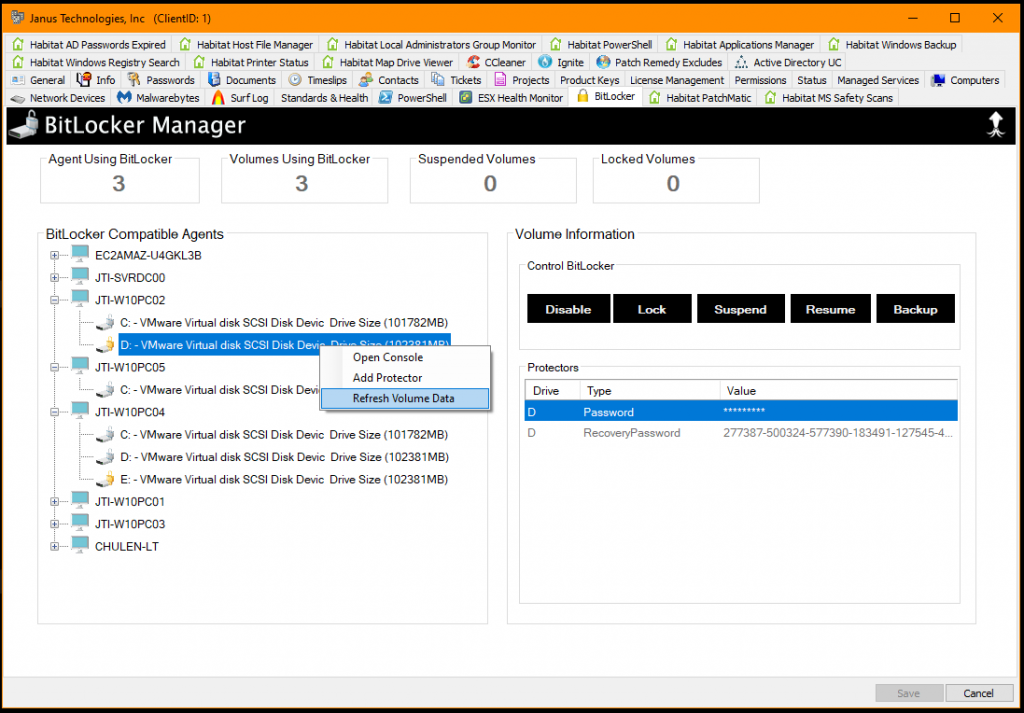
Plugins4Automate released a new plugin that allows MSPs to manage BitLocker across the environment. this plugin is for ConnectWise Automate 2020+ on=prem and hosted platforms.
Plugins4Automate has released a new plugin to mange BitLocker across all your clients.
What once was hard is now easy pesy!
Come take a quick read on how we can help manage all the BitLocker data and provide quick and easy tools to manage BitLocker inside Automate.
If you use ConnectWise Automate, then having access to your client’s Active Directory at your finger tips is critical to saving time and energy managing their environments. Our plugin is designed to provide you with the same tools you would have available if you were actually on the domain controller.
This month we are giving away a month (1) subscription to this plugin so you can give it a good test drive. We guarantee it will make managing your clients Active Directory Users and Groups much faster. Everything is just one click away in your ConnectWise Automate Environment.
October 02, 2021 • 3rd party Application management for ConnectWise Automate • Add functionality to ConnectWise Automate • Habitat toolbox for Automate releases a mega build.
Habitat for ConnectWise Automate launches the next major release of Habitat. After 2 years and a lot of additions of tools and services, Habitat has reached a milestone. Habitat is bumping up the primary build number to 1.0.1.x. Want to know what they added recently and how Habitat can make your ConnectWise Automate Host so much better?
You have a CW server that is currently on an older version of ConnectWise Automate and during your upgrade path you receive a failure during the patching of Automate. The error message: Incorrect information in file: .\labtech\microsoftnoncompliantpatchcounts.frm’
So how to fix this?
You will need to log into your Automate servers desktop and launch SQLYog or connect to server via SQLYog or MYSQL Workbench over the local network. Now before you do anything you should backup your Automate server and/or SQL databases so that you can restore back to an operational level if things go south. You should of done this prior to starting any upgrade of Automate so you should be safe to continue with fix.
Now that your connected you should be able to see the list of databases on your Automate server like the image above. If you do not already have one, create a new database called test. Next open the test database and select the Tables sub item, right click and select to Create Table. Call the new table microsoftnoncompliantpatchcounts, it can have just one column that should default to numerical column and private key, save the table. Now exit the SQL editor your using.
Next, it’s time to stop the LabMySQL services on the Automate server. Copy the file %programdata%\mysql\mysql server 5.6\data\test\microsoftnoncompliantpatchcounts.frm to %programdata%\mysql\mysql server 5.6\data\labtech\microsoftnoncompliantpatchcounts.frm and overwrite the existing file that is there. Now restart the LabMySQL Service and log back into the SQL services using SQLYog or MYSQL Workbench.
In your SQL editor open a clean query window by selecting the database you want (labtech) and then selecting new query window button. In the new query window and paste or type the following SQL command DROP TABLE IF EXISTS microsoftnoncompliantpatchcounts; The results returned should be 1 queries executed, 1 success, 0 errors, 0 warnings.
Now go execute the failing ConnectWise Automate patch and see if it now succeeds?
It’s a Birthday celebration here at Plugins4Automate and we want you to get in on the party! So here is a gift from Habitat to you.
For the month of May, get Habitat for ConnectWise Automate with an extra 10% off the monthly subscription price. You will be getting the gift that keeps on giving, once signed up your subscription price will never change, even as Habitat evolves your savings will continue.
Habitat has a new tool under the client location’s console that allows you to keep track of WiFi devices on each of the clients different location’s wifi networks.
The Habitat Wifi Location Scanner retrieves from Wifi enabled agents, a current list of seen Wifi devices on the networks being accessed. The service is keeping track of when devices are first seen and when the last detected time was and weather or not the devices are actively online (pingable).
Device names maybe blank if the do not broadcast a name. However they will broadcast a net adapter company name which helps to identify the type of devices.
Amazon Technologies Inc. = Alexa Audio Device
Nintendo Co. ,Ltd = Nintendo game system
Google, Inc. = Google Audio Device
Roku Inc. = RoKu TV devices
Showing you the game systems, Audio(Listening Devices), Cell phones, TV and Smart card devices, PC, switches and routers that appear on the clients networks. See when they show up on the network, if they are still on the network and when the last time we saw them on the network.
This is all useful information when you need to know how network resources at a given location are being utilized.
We have streamline the process so you can quickly see what status the Windows Backups are in across all your clients. You can configure new daily backups or just launch a manual backup prior to you doing any major work on the agent. You can see the logs and activity for each agent and launch internal monitors to alert you of backup failures.
Take control of your backup environment with Habitat!
Backup Windows will launch with the release of build 1.0.0.65 of Habitat.